
Google’s been pushing AI into Search for a while now, and honestly, most of it has felt like window dressing. But the latest update to AI Mode in Chrome caught my attention because it actually addresses something I’ve been complaining about for years: tab hopping.
You know the drill. You search for something, open a link, switch back to search, open another link, lose your train of thought, and suddenly you have seventeen tabs open and no memory of what you were looking for. Google’s new approach is refreshingly straightforward.
Side-by-side without the headache
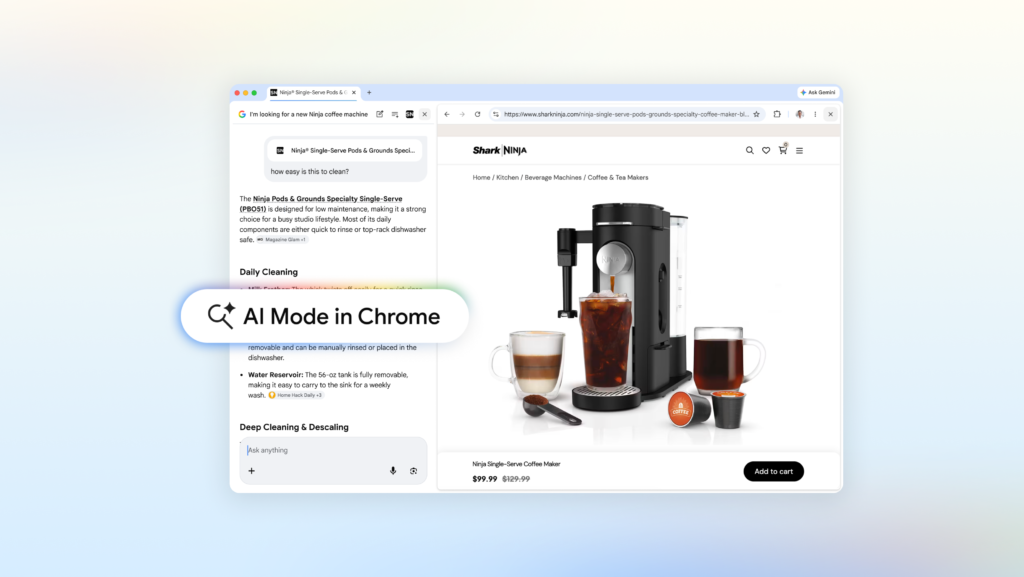
AI Mode on Chrome desktop now opens clicked links in a side panel next to your search results. It’s not a revolutionary concept — split-view browsing has been tried before — but the execution matters. The search context stays visible, and you can ask follow-up questions without losing your place.
Say you’re hunting for a coffee maker that fits in a tiny apartment and makes decent lattes. You describe what you need, AI Mode returns some options, and you click one. The retailer’s site opens right there. You can ask “How easy is this to clean?” and AI Mode pulls context from both the page and the broader web. No tab switching, no re-typing your query.
I’ve been testing this with more complex research, like looking into different McLaren Racing teams and their pit crew training methods. Opening the official McLaren site alongside the search kept me from bouncing between tabs like a pinball. The follow-up questions worked in real time, and I actually finished reading a few articles instead of just bookmarking them for later.
Search across your open tabs
Here’s where it gets more interesting. You can now search across the Chrome tabs you already have open. On desktop or mobile, there’s a “plus” menu in the search box on the New Tab page (or within AI Mode itself) that lets you select recent tabs and add them to your search context.
You’re not limited to tabs either. You can mix in images and files like PDFs. If you’re researching local hiking trails and have several sites open, you can add those tabs to your search and ask for similar kid-friendly trails in a different location. It actually uses the context instead of just pretending to.
For students, this is genuinely useful. You could have class notes, lecture slides, and academic papers open, then ask for more examples to illustrate a tricky concept. AI Mode uses those tabs to tailor the response and suggests more sites to explore. It’s not perfect — I’ve seen it miss some nuance in dense technical papers — but it’s miles ahead of the old “copy-paste into a new search” workflow.
What’s still missing
Canvas and image creation tools are accessible within AI Mode, but I haven’t found them particularly compelling yet. The image generation is fine for quick mockups, but you’re better off with dedicated tools for serious work. The Canvas feature feels like it’s trying to be too many things at once.
Also, this is Chrome desktop and mobile only for now. If you’re a Firefox or Safari user, you’re out of luck. Google’s ecosystem lock-in is real, and this is another example of features that make it harder to switch.
The bottom line
AI Mode in Chrome isn’t going to change the world, but it does make a common frustration — bouncing between search results and web pages — significantly less annoying. The side-by-side layout and cross-tab search are practical improvements that actually save time. For a Google AI feature, that’s higher praise than I’d normally give.
If you’re already in Chrome, give it a shot. Just don’t expect it to fix your tab hoarding habit entirely. Some things are beyond AI’s reach.
Comments (0)
Login Log in to comment.
Be the first to comment!